
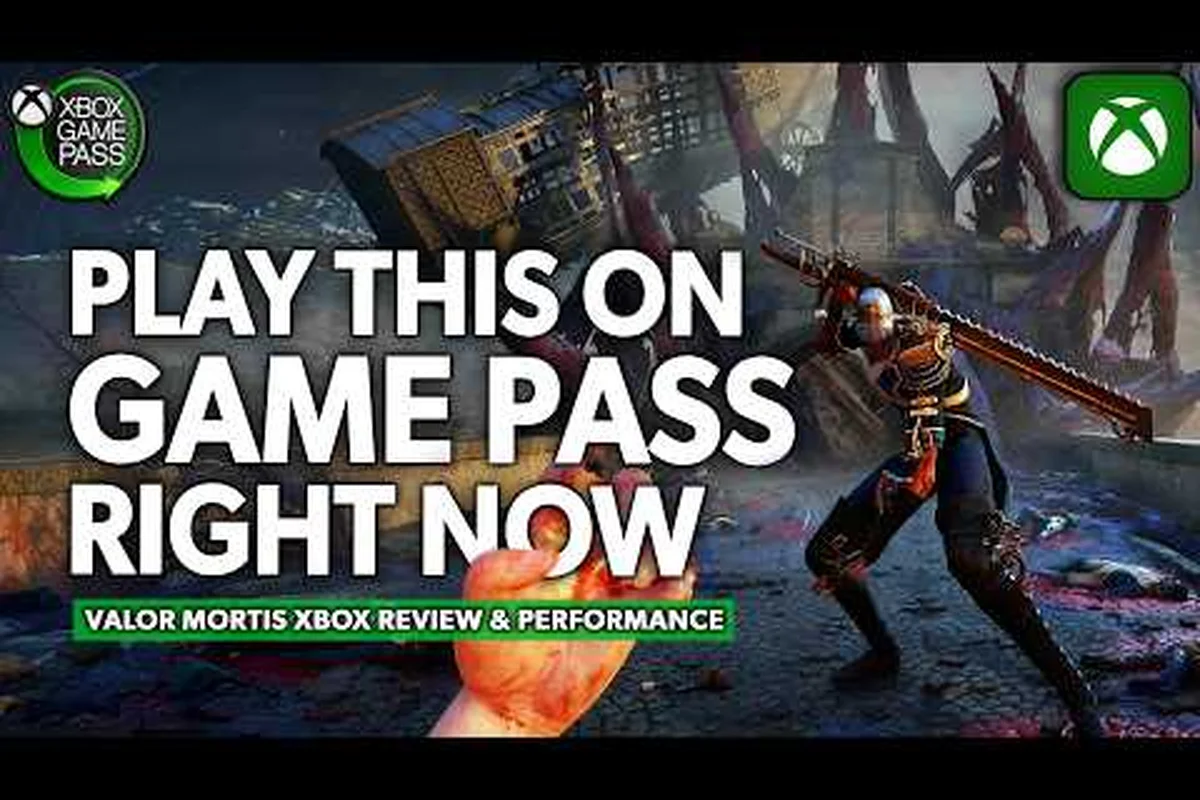
Getting Valor Mortis running smoothly on Game Pass requires more than just hitting install. The first-person camera and parry-heavy combat punish input lag and frame drops harder than most soulslikes, which means your settings directly affect whether a boss fight feels fair or frustrating. This Valor Mortis Game Pass guide walks through the exact PC configuration, FPS stabilization tricks, and controller tuning that turn a choppy first hour into a responsive 60-plus frame experience.
Game Pass Installation and First Launch Setup
The Game Pass edition of Valor Mortis is functionally identical to the Steam build, but the Xbox app's default install path and overlay behavior can introduce stutter that players often misattribute to the game itself. Before you touch any in-game graphics settings, verify that the installation landed on an SSD rather than a mechanical drive. The game streams Metroidvania-inspired level geometry constantly, and community reports consistently show that HDD installs cause traversal hitches when moving between interconnected zones.
Verifying Your Install and Platform Overlays
The Xbox Game Bar and the Xbox app's background recording features both hook into the render pipeline, and on mid-range hardware they can cost you anywhere from 5 to 12 frames per second in combat-heavy scenes. Disable Game Bar background recording and the Xbox app's automatic clip capture before launching the game for the first time. This single change resolves more stutter complaints than any in-game setting adjustment.
| Launch Step | Action | Impact on Performance |
|---|---|---|
| 1 | Install to NVMe or SATA SSD | Eliminates traversal stutter |
| 2 | Disable Xbox Game Bar recording | Recovers 5–12 FPS on mid-range GPUs |
| 3 | Disable Xbox app clip capture | Reduces background CPU load |
| 4 | Verify GPU driver is current | Fixes shader compilation hitches |
| 5 | Set Windows power plan to High Performance | Prevents CPU downclocking during fights |
The official Valor Mortis Steam page lists the same minimum and recommended specs for the Game Pass build, so if your system sits near the minimum threshold, treat every background process as a potential frame thief. Players on the r/ValorMortis community hub report that closing Discord's hardware acceleration and any RGB control software before launch smooths out the worst frame-time spikes.
Best Graphics Settings for Stable Frame Rates
Valor Mortis is built on a custom engine that scales unevenly across settings tiers, which means blindly maxing everything out produces worse visual returns than a tuned mix of medium and high options. The game's volumetric fog and screen-space reflections are the two heaviest settings, and both interact badly with the dense atmospheric effects that fill the alternate 19th-century European environments.
Prioritizing Frame Rate Without Sacrificing Visual Clarity
The first-person camera means you notice frame drops more than you would in a third-person soulslike, because the entire viewport shifts with every mouse movement. Locking to a stable frame rate matters more than chasing a high average, since inconsistent frame pacing makes parry timing feel unpredictable.
| Setting | Recommended Value | Performance Impact |
|---|---|---|
| Volumetric Fog | Medium | High — recovers 8–15 FPS |
| Screen-Space Reflections | Off or Low | High — recovers 6–12 FPS |
| Shadow Quality | Medium | Medium — recovers 4–8 FPS |
| Texture Quality | High (if 8GB+ VRAM) | Low — minimal FPS cost |
| Anti-Aliasing | TAA | Low — sharpens without blur |
| Motion Blur | Off | Low — improves parry readability |
| Depth of Field | Off | Low — removes combat blur |
| FOV | 95–100 | None — improves spatial awareness |
Motion blur and depth of field are particularly harmful in a game where you need to read enemy wind-up animations at close range. Turning both off makes the parry window easier to track visually, which matters more than cinematic polish when a mistimed block costs you half a health bar.
Upscaling and Resolution Scaling Options
If your GPU struggles to hold 60 frames at native resolution, the game's built-in resolution scaler is a better first step than dropping to 1080p on a 1440p monitor. Set the render scale to 85–90 percent before touching resolution, because the TAA implementation masks most of the softness while preserving UI sharpness. Community testing indicates that a 1440p output with 85 percent render scale looks cleaner than native 1080p upscaled, and it costs roughly the same GPU load.
Proven FPS Fixes for the Game Pass Build
The Game Pass version has a few platform-specific quirks that the Steam build does not share, mostly related to how the Xbox app handles file permissions and cloud save syncing. When players report sudden frame drops after an hour of smooth play, the culprit is usually the Xbox cloud save sync running in the background during autosave triggers.
Fixing Stutter, Frame Drops, and Shader Compilation Hitches
The most effective Valor Mortis FPS fix for the Game Pass edition is disabling the Xbox app's cloud save sync during gameplay, which you can do by launching the game in offline mode or pausing sync from the Xbox app settings. The game autosaves frequently at checkpoint altars, and each sync attempt can cause a visible hitch that players mistake for a rendering problem.
| Symptom | Likely Cause | Fix |
|---|---|---|
| Hitch at checkpoint altars | Xbox cloud save sync | Pause sync or play offline |
| Stutter in new areas | Shader compilation | Let shaders cache on first load |
| Frame drops during boss fights | Particle effects + fog | Lower volumetric fog to Medium |
| Gradual FPS decline over time | Memory leak in Xbox overlay | Restart game every 2–3 hours |
| Micro-stutter with controller | Bluetooth polling rate | Use wired connection or Xbox adapter |
Shader compilation stutter is a one-time cost that resolves after the game has cached shaders for each area, so resist the urge to judge performance during your first 30 minutes. The initial load into each new biome triggers background compilation, and players who push through it report that subsequent visits to those zones run smoothly.
Driver and Windows-Level Optimizations
A current GPU driver matters more for this game than most, because the launch-day driver from both NVIDIA and AMD includes Valor Mortis-specific shader optimizations that reduce compilation hitches. If you installed the game before updating your driver, clear the shader cache after updating so the game rebuilds its cache with the optimized versions. On the Windows side, disabling Hardware-Accelerated GPU Scheduling has resolved frame pacing issues for some players on RTX 3000-series cards, though results vary by configuration.
Controller Settings for Responsive Parrying
The default controller layout works, but it buries the parry on a face button that forces you to move your thumb off the right stick, which costs you camera control at the exact moment you need to track an incoming attack. The best Valor Mortis controller settings remap parry to a shoulder button so your thumb never leaves the camera stick during defensive play.
Remapping for Camera Control and Faster Reactions
Parry timing in Valor Mortis is tighter than in most soulslikes, and the game's first-person camera means you need to keep the enemy centered in view while reacting to their wind-up. Moving parry to LB/L1 and placing light attack on RB/R1 creates a layout where both your primary offensive and defensive actions live on shoulder buttons, leaving your right thumb free for camera adjustments.
| Action | Default Binding | Recommended Binding | Reason |
|---|---|---|---|
| Parry / Block | LT/L2 | LB/L1 | Faster access, thumb stays on stick |
| Light Attack | RB/R1 | RB/R1 | Keep as default |
| Heavy Attack | RT/R2 | RT/R2 | Keep as default |
| Dodge / Roll | B/Circle | LT/L2 | Trigger pull feels more responsive |
| Lock-On | R3 | R3 | Keep as default |
| Use Item | X/Square | X/Square | Keep as default |
Moving dodge to LT/L2 takes advantage of the trigger's analog travel for a more deliberate roll input, and it separates your defensive options across both hands so you never fumble between parry and dodge in a panic. The lock-on system benefits from staying on R3 because you need to toggle it frequently in group fights, and moving it to a face button would force camera compromises.
Stick Sensitivity and Dead Zone Tuning
The default right stick sensitivity feels sluggish for a first-person game, especially when you need to track fast-moving supernatural enemies that circle around you. Raising horizontal sensitivity to 7 or 8 while keeping vertical at 5 or 6 creates a snappier turn speed without making vertical aim feel floaty. Set the inner dead zone as low as your controller allows without introducing drift, because a large dead zone adds input delay to every parry and dodge.
Players who prefer keyboard and mouse should check the keyboard and mouse settings guide for a full breakdown of bindings and DPI recommendations, but controller users will find that the remap above makes the game's demanding combat feel significantly more responsive.
Performance Expectations Across Hardware Tiers
Understanding what frame rate your hardware should realistically achieve prevents you from chasing settings combinations that your GPU cannot sustain. The game's dense atmospheric effects and first-person perspective make it more demanding than its visual style suggests, and the recommended specs target 60 FPS at 1440p with a mix of high and medium settings.
Realistic Frame Rate Targets by GPU Class
Community benchmarks from launch week provide a useful baseline for what to expect, though individual results vary based on CPU pairing and background processes. The numbers below assume the settings recommendations from the previous section are applied.
| GPU Class | 1080p Target | 1440p Target | Notes |
|---|---|---|---|
| RTX 3060 / RX 6600 XT | 60 FPS stable | 45–55 FPS | Lower fog to Low for 1440p |
| RTX 3070 / RX 6700 XT | 80–100 FPS | 60 FPS stable | Sweet spot for this game |
| RTX 3080 / RX 6800 XT | 120+ FPS | 80–100 FPS | Max textures, medium fog |
| RTX 4060 / RX 7600 | 70–90 FPS | 50–60 FPS | Use render scale at 1440p |
| GTX 1660 Super | 45–55 FPS | Not recommended | Minimum spec territory |
The RTX 3070 / RX 6700 XT tier represents the sweet spot for this game, delivering a locked 60 frames at 1440p with the recommended settings while leaving enough headroom for the particle-heavy boss encounters. If you are on minimum-spec hardware, the how to survive guide includes additional tips for managing combat difficulty when frame rates dip below the ideal threshold.
CPU Bottlenecks in Dense Combat Scenes
Valor Mortis leans on the CPU more than typical action games because of the Metroidvania level streaming and the number of active enemies the game throws at you in later zones. If your GPU usage drops below 90 percent during fights while frame rates fall, you are CPU-limited rather than GPU-limited. Lowering shadow quality and volumetric fog helps in these cases because both settings carry significant CPU overhead in addition to their GPU cost.
Frequently Asked Questions
Does Valor Mortis run well on Xbox Game Pass PC?
The Game Pass PC build runs identically to the Steam version once you disable the Xbox app's background recording and cloud save sync during gameplay. Players report that these two platform-specific settings cause most of the stutter complaints, and turning them off brings performance in line with the Steam build.
What are the best Valor Mortis settings for a mid-range PC?
For a mid-range GPU like an RTX 3060 or RX 6600 XT, set volumetric fog to Medium, screen-space reflections to Off, shadow quality to Medium, and textures to High. Disable motion blur and depth of field, then lock the frame rate to 60 for consistent frame pacing during parry-heavy fights.
Why does my FPS drop during boss fights?
Boss encounters trigger heavy particle effects and volumetric fog simultaneously, which spikes both GPU and CPU load. Lowering volumetric fog to Medium and disabling screen-space reflections recovers the most frames in these scenes, and disabling the Xbox cloud save sync removes the autosave hitches that compound the problem.
Should I use a controller or keyboard and mouse for Valor Mortis?
Both input methods work well, but the first-person camera and tight parry timing favor a controller with remapped shoulder buttons. Moving parry to LB/L1 and dodge to LT/L2 keeps your thumb on the right stick for camera control, which makes tracking enemy wind-ups significantly easier during intense fights.
How do I fix stutter on the Game Pass version specifically?
The Game Pass version's stutter usually comes from Xbox app background processes rather than the game itself. Disable Game Bar recording, pause cloud save sync during gameplay, and verify the game is installed on an SSD. These three changes resolve most reported stutter issues without touching in-game settings.
The Game Pass edition of Valor Mortis is a demanding game that rewards a deliberate setup process. By disabling platform overlays, tuning the heaviest graphics settings, and remapping your controller for camera-first combat, you transform a potentially frustrating first session into the responsive experience the parry system demands. These adjustments take ten minutes and pay off across the entire 25-hour campaign.